
Manage Menu Page
How to add a main menu or sub-level dropdown menu to the horizontal menu bar?
Manage NewsMultiple-Level News Menu
Our multi-level navigation tree-menu makes it very clear to navigate and manage all pages of the website. All of our clients have access to unlimited sub-catalog level to accommodate different company needs.
How to add a menu to the main(root) level?
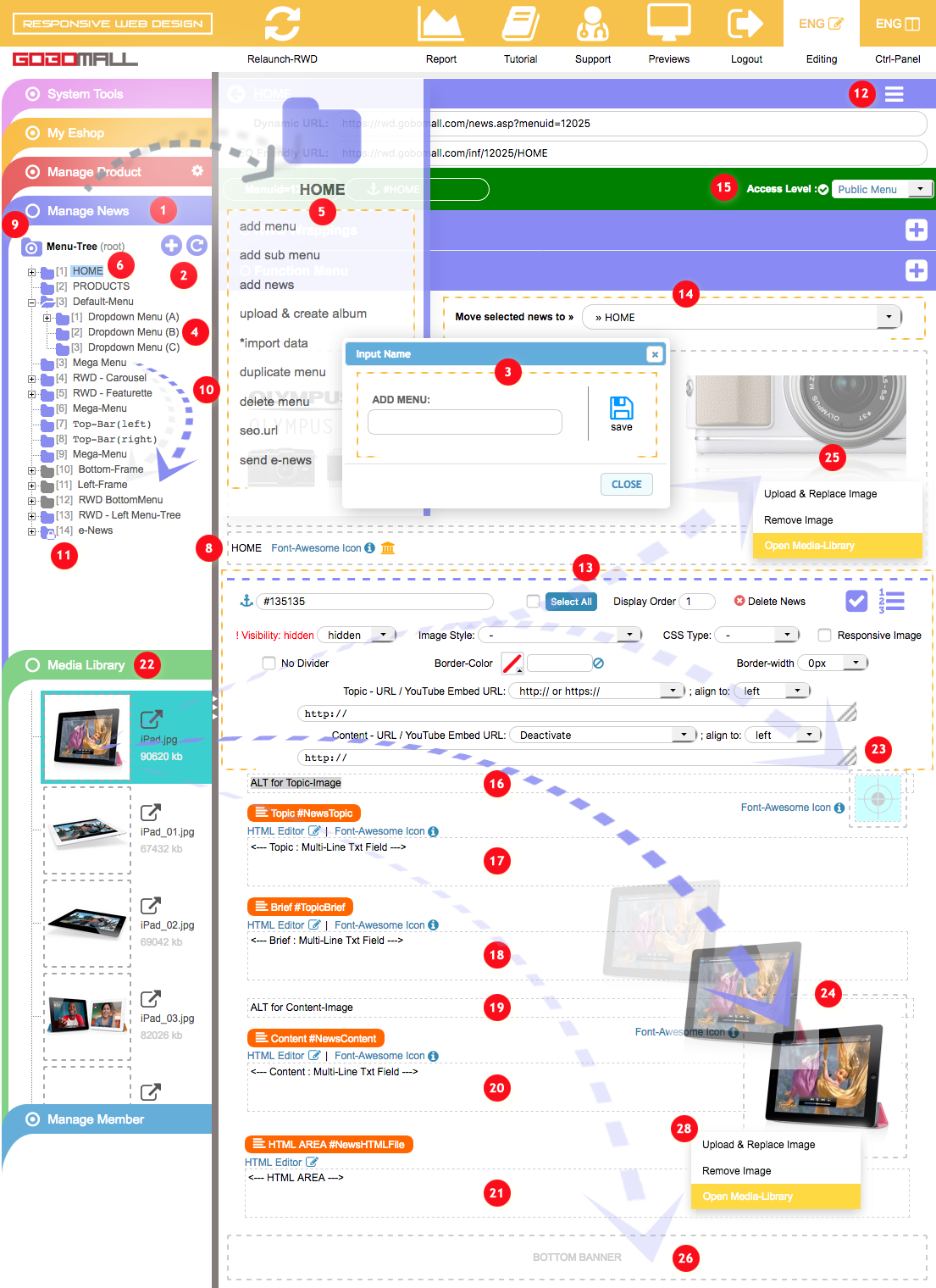
- Extend "Manage News" {~1~} on left-frame;
- click on the cross icon "+" {~2~} to open "ADD MAIN MENU" dialog {~3~};
- input the menu-name at {~3~}, such as "Home";
- click "save" {~3~} to confirm action.
How to add a sub-menu dropdown to the same level, or sub level?
- Extend "Manage News" {~1~} on left-frame;
- right-click on any target menu {~4~} or click on that navigation icon {~12~} to open right-click pull-out menu {~5~};
- click on "add menu" {~5~} for adding a new menu to the same level, or select "add sub menu" {~5~} adding to the sub-level;
- "ADD MENU" or "ADD SUB MENU" dialog {~3~} will then be opened;
- input the menu-name at {~3~}, such as "Dropdown Menu (A)" {~4~};
- click "save" {~3~} to confirm action.
How to move a main(root) menu among all those sub-menu dropdowns to the top-left or top-right of the navBar?
- Get to the target news page;
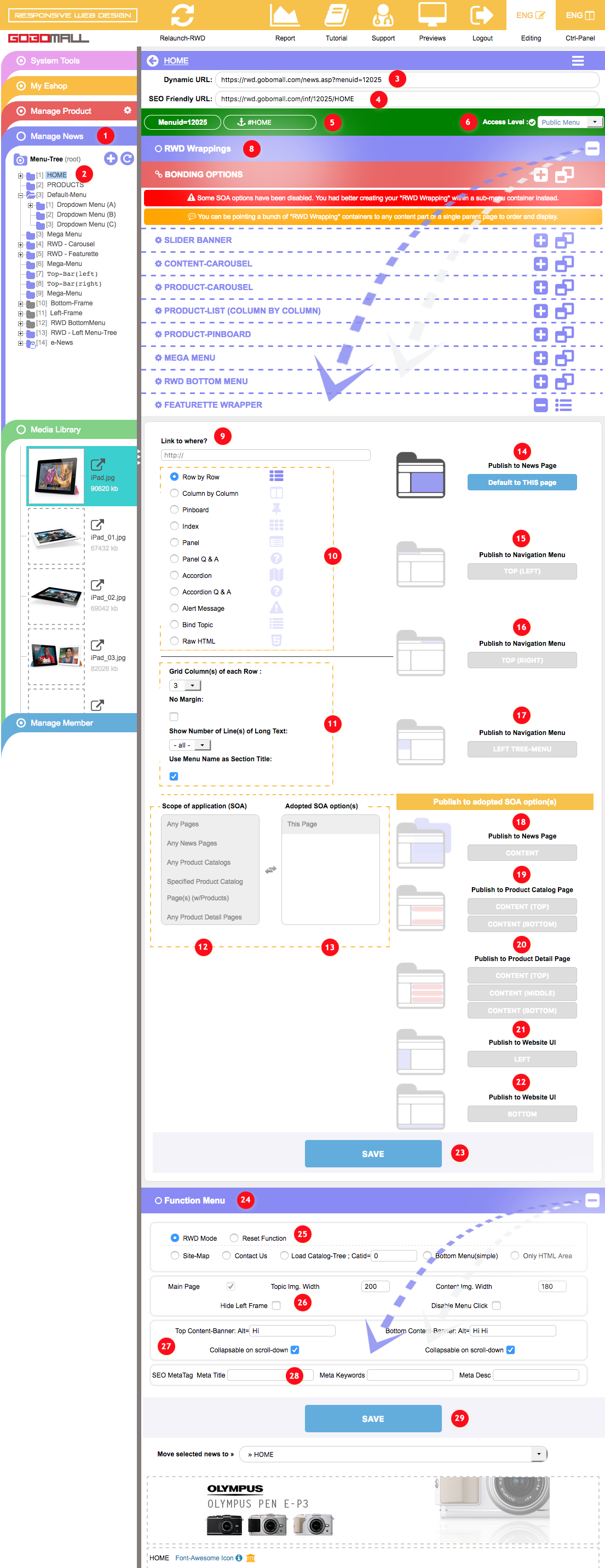
- Extend "RWD Wrappings" {~8~}, then extend "FEATURETTE WRAPPER";
- click on the button "TOP (LEFT)" {~13~} or "TOP (RIGHT)" {~14~} under "Publish to Navigation Menu";
- then click on button "SAVE" {~23~} to confirm the changes.
How to move a main(root) menu among all those sub-menu dropdowns to the left-frame?
- Get to the target news page;
- Extend "RWD Wrappings" {~8~}, then extend "FEATURETTE WRAPPER";
- click on the button "LEFT TREE-MENU" {~15~} under "Publish to Navigation Menu";
- then click on button "SAVE" {~23~} to confirm the changes.
How to define a custom "click" link for the menu?
- Get to the target news page;
- Extend "RWD Wrappings" {~8~}, then extend "FEATURETTE WRAPPER";
- Input an external/internal URL into the text-box "Link to where? {~9~}",
Example: adding an internal link:
P.S. The website address can be omitted from the URL.
1) /inf/25252/open-eshop/feature-highlights
2) /cat/22552/computer/keyboard
How to rename, delete, move, hide, or change the order sequence of a menu?
How to rename a menu?
Double-click on the target menu name to start editing, such as the name of "Home" in the tree-menu {~6~} or the name in the content page {~8~}, then click on any blank area to save the changes.
How to delete a menu?
Right-click on any target menu in the tree-menu, such as the menu of "Dropdown Menu (B)" {~4~} or the navigation icon {~12~} in the content page, the right click pull-out menu will then be opened, just select "delete menu" in {~5~} to open "Delete Menu" dialog.
How to move/rearrange the position of a menu?
All menu items in the tree-menu can also be easily moved by drag-&-drop {~10~}.For moving a menu item from its sub-level up to the main(root) level, you should have it drop to that target icon {~9~}.
How to change the order sequence of a menu?
Each of the menu item contains a prefix number {~11~}, which is the current order sequence, just double-clicking on it to start editing, then click on any blank area to save the changes.
How do I not to publish a menu?
Refer to the badge {~15~}, just pick that option "Don't Publish".If "Hidden" is being selected, that menu will not be showing up on the website. However, it's still be accessible via the classic/friendly URL.
How to put a banner image to the TOP/BOTTOM of the content page? or remove? or replace? or find out its location in the "Media Library"?
How to put a banner image to the TOP/BOTTOM of the content page?
Each news page comes with two banner drop-targets, one in the top and another one in the bottom:
- Get to the target news page;
- explore the image file in "Media Library" {~22~};
- if the image is already exists, you can directly drag it from the "Media Library" and drop it to the "TOP BANNER" area {~25~} or "BOTTOM BANNER" {~26~} area.
See also "Drag & Drop Capability".
If not, you should have it being uploaded to the "Media Library" first:See also "Multiple File Uploader"
How to remove a "TOP BANNER" or "BOTTOM BANNER" from a news page?
Right-click on any target banner image to open the right-click pull-out {~25~}, then select - "Remove Image".
How to replace a "TOP BANNER" or "BOTTOM BANNER" ?
Right-click on any target banner image to open the right-click pull-out {~25~}, then select - "Upload & Replace Image".
How to find out its location in the "Media Library"?
Right-click on any target banner image to open the right-click pull-out {~25~}, then select - "Open Media Library".
How to change the accessibility of a news menu?
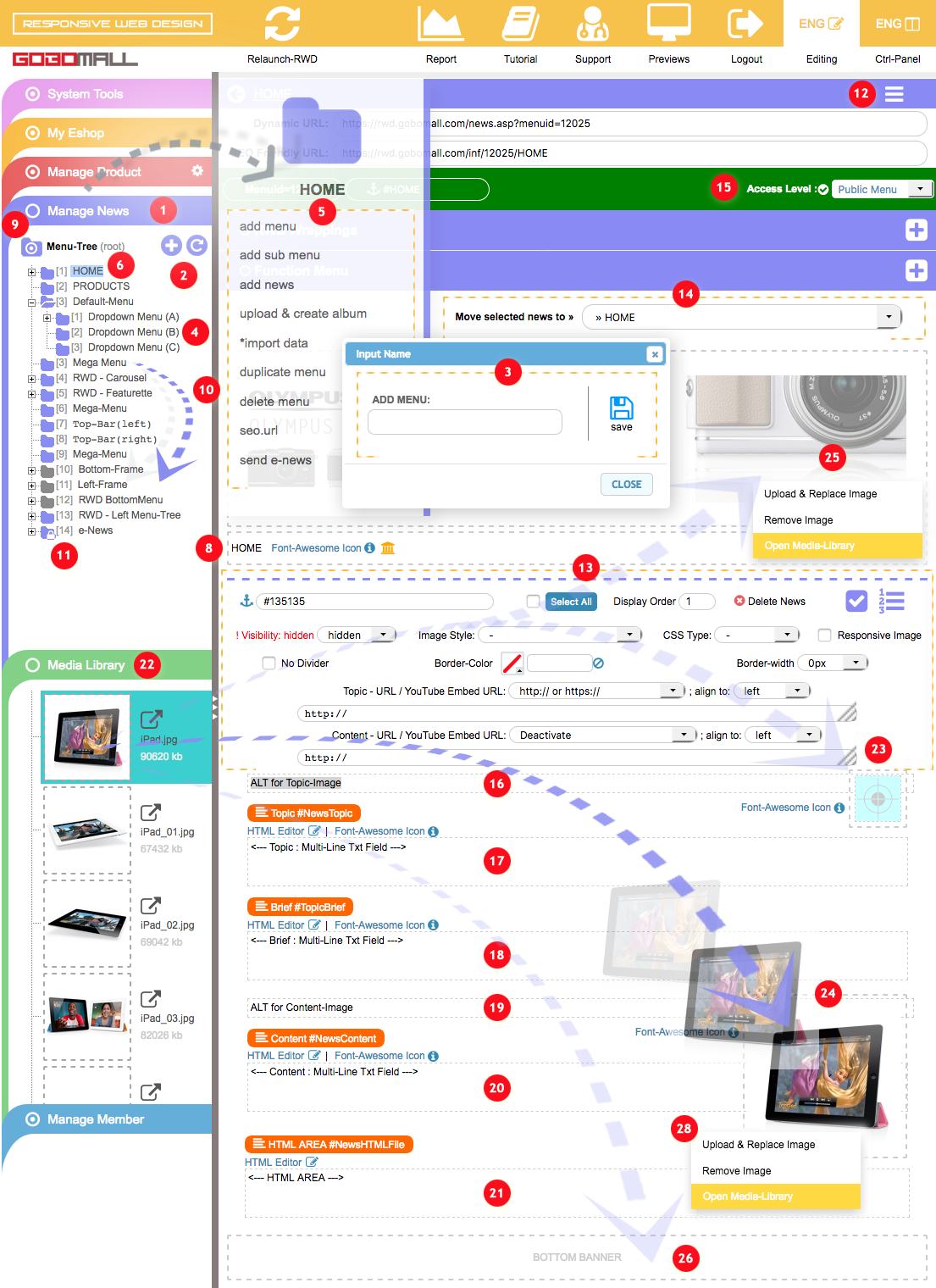
Access level {~6~}:
- Don't Publish {~i~(fa-ban)~i~}
Not accessible. - Public Menu {~i~(fa-check-circle)~i~}
Allowed for public access. - Private Menu {~i~(fa-lock)~i~}
Solely grant accessing permission for assigned group members; if its been selected, icon {~i~(fa-users)~i~} will then be appeared next to it, just click on this icon to open dialog for assigning access rights. - Hidden {~i~(fa-exclamation-circle)~i~}
Still be accessible, but will not be showing up on the website, the page still be accessible by accessing thru the friendly URL or Classic URL.
Function Menu {~24~} » Menu Type {~25~}:
- "RWD Mode" and "Reset Function"
Once any of the RWD Wrapping has applied, the "RWD Mode" will be turn to "on", you can choose "Reset Function" restoring the default setting to the menu. - Site-Map
See also How to build a Site-Map? - Contact Us
Contact Us form will be created. - Load Catalog-Tree (Catid)
By default, the entire catalog-tree will be generated under this tab of the horizontal menu.
Once its being selected, you can then specify a Catid value, which enables you to determine the initial point of rendering the sub catalog-tree. - Bottom Menu(simple)
All sub-menus under this menu will be showing up at the bottom part of the website. - Only HTML Area
Check this box, if you just want to create a static HTML web page or e-news page with your own HTML source code without any dynamic content.
Function Menu » Setting {~26~}:
- Main Page {~26~}
Define the Home page of the website. - Topic/Content Img. Width {~26~}
Overridden by the option of "Responsive Image" of each news item. - Hide Left Frame {~26~}
If you want to widen the content-frame, check this box to "on" to hide the left-frame. - Disable Menu Click {~26~}
Check this box to "on", the menu will not be clickable. - Top/Bottom Content-Banner Alt-Text {~27~}
Input alternative text for enhancing the search capability on search engine, such as Google, Yahoo, Bing and so on. - SEO MetaTag - Meta Title, Keywords, and Desc {~28~}
Specify Meta Title, Keywords, and Meta Descriptions.