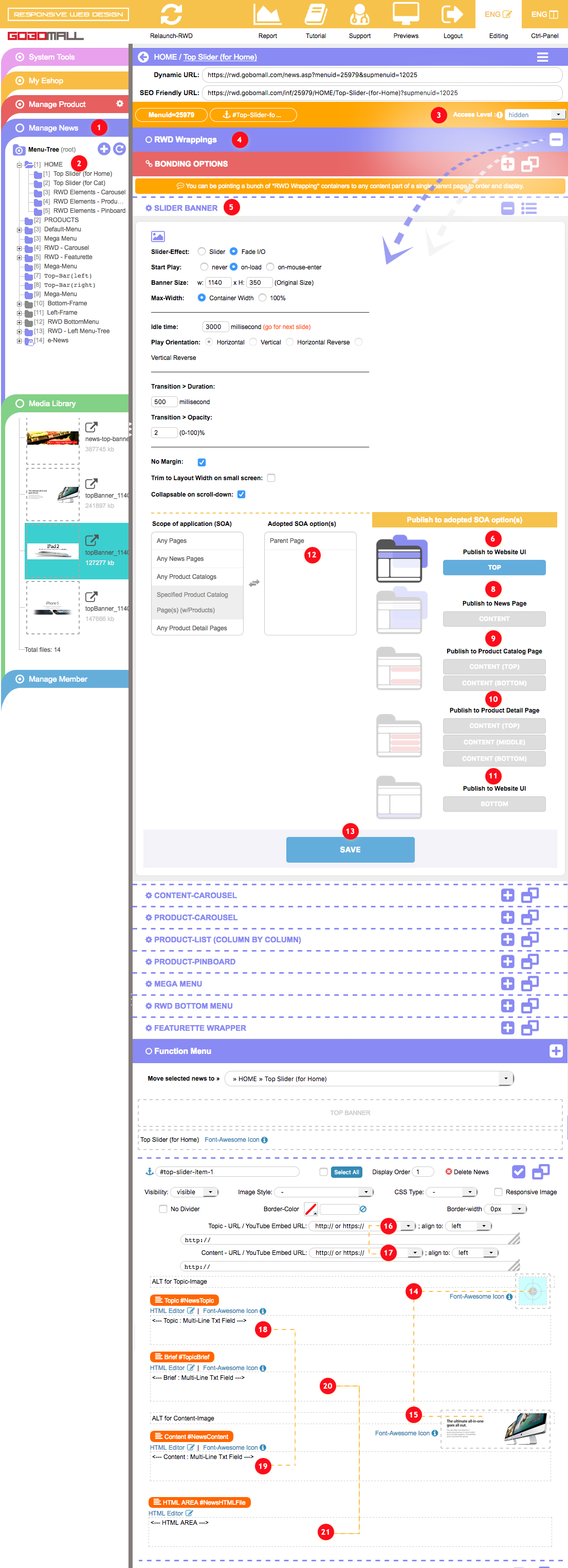

SLIDER-BANNER
How to set up a SLIDER-BANNER?
Not just adding a SLIDER-BANNER to the TOP/LEFT/CONTENT/BOTTOM, etc... of the website UI. The flex and wide range of distributions of the scope of application(SOA) enables you adding your SLIDER-BANNER to almost any pages across the website, which covers News Page(s), Product Catalog Page(s), Product Detail Page(s), Member Area, and Shopping Cart, and so on.
Such a slider capable of sliding text, HTML, banner image, YouTube video, etc.
How to set up a "SLIDER-BANNER" in the top of the web page?
Firstly, you need to create a sub-menu under the "Home" menu to start with,
- extend "Manage News" {~1~};
- right-click on the menu name "Home" {~2~} to open pull-out menu, then make use of the function - "add sub menu" to create a sub-menu under the "Home",
* this newly added sub-menu will be treated as a "child" under the menu - "Home", on the contrary, the "Home" will be recognized as its "parent", such sub-menu will also be treated as the "sub-menu container" of the SLIDER-BANNER.
* In addition to the SLIDER-BANNER, you can be adding multiple sub-menu containers pointing to the same target parent page, the order and display of the parent page will be determined by the order sequence of each sub-menu.
* Some SOA options will not be available in the main(root) level. In order to apply the mixed sharing and crossover application, the "Parent Page" {~12~} option must be turned "on" in the "Adopted SOA option(s)", in such case, the sub-menu container ought to be putting under a parent menu,
for details, please refer to How to add a sub-menu? - as long as the sub-menu container is created, change its "Access Level" to "hidden" {~3~}, then extend "RWD Wrappings" {~4~}, in SLIDER-BANNER {~5~}.
- You do have the following options in {~5~}:
- Slider-Effect:
1. Slider, 2. Fade I/O. - Start Play:
1. never, 2.on-load, 3. on-mouse-enter. - Banner Size:
width x height, input the original size of the banners. - Max-Width:
1. Container Width, 2. 100%. - Idle time:
duration of showing each slide (in millisecond). - Play Orientation:
1. Horizontal, 2.Vertical, 3.Horizontal Reverse, 4.Vertical Reverse.
* solely for the effect of "Slider". - Transition » Duration:
duration of the transition time (in millisecond). - Transition » Opacity:
the opacity level of the slider duration the transition. - No Margin:
remove the top and bottom margin of the slider. - Trim to Layout Width on small screen:
To shorten length, the both side of the slider will not be shown if the screen width is less than 1,140px,
* solely available for those slider with the max-width in "100%" is set. - Collapsible on scroll-down
Collapse the slider when the page is scrolling downward.
- Slider-Effect:
- Choose where to distribute the slider,
- "Publish To" - publish to which part of the website?
You can publish the slider banner to the:- Website UI » TOP {~6~};
- News Page » CONTENT {~8~};
- Product Catalog Page » CONTENT (TOP/BOTTOM) {~9~};
- Product Detail Page » CONTENT (TOP/MIDDLE/BOTTOM) {~10~};
- Website UI » BOTTOM {~11~},
* if you wanna have your slider being distributed to the top of the Website UI, you should click the button "TOP" {~6~}.
for details, please refer to How to set up the "Publish To" target for a "RWD Wrapping"? - Website UI » TOP {~6~};
- "Scope of application (SOA)" - publish to which page(s) of the website?
To publish your slider to the parent page, you should pick the option "Parent Page" for the "SOA" {~12~}.
for details, please refer to How to use of the Scope of application (SOA)?
- "Publish To" - publish to which part of the website?
- click on the "SAVE" {~13~} button to confirm the changes.
By following the above steps, we suppose the SLIDER-BANNER will be showing up in the "top" of the "Home" page.
How to set up a "SLIDER-BANNER" in the top of the product catalog or product detail page?
- Just following the above steps, the sub-menu container can be pointing to any "parent" menu, just keep it at the sub-level;
- Specify the "Catid" and/or "Pdtid",
build up the bonding with any product catalog(s) and/or product detail page(s),
for more details, please refer to How to set up the "Bonding Options"?- Set up the "Publish To" target,
click the button "TOP" {~6~} under "Publish to Website UI",
for more details, please refer to How to set up the "Publish To" target?- Pick the "Scope of application(SOA)",
once the bonding is set, the following SOA options will then be turned "on" {~12~}:for more details, How to use of the Scope of application (SOA)?
- Product Catalog Page » CONTENT (TOP/BOTTOM);
- Product Detail Page » CONTENT (TOP/MIDDLE/BOTTOM),
How to insert banner image(s) to the "SLIDER-BANNER"?
The banner image(s) should be added to the "Topic-Image" {~14~} and/or "Content-Image" {~15~} area,
for more details, please refer to this article:
How to insert an image to "Topic-Image" or "Content-Image"?
How to add linkage to the banner image(s)?
Linkage can be managed thru the options - "Topic - URL / YouTube Embed URL" {~16~} and/or "Content- URL / YouTube Embed URL" {~17~} area,
Please refer to this article:
How to manage the linkage of "Topic-Image" or "Content-Image"?
How to slide HTML or YouTube video in SLIDER-BANNER?
HTML or embed YouTube video can be added to the "Topic" {~18~} and/or "Content" {~19~} area,
for embedding YouTube video, both of the width and height ought to be changed to 100% to adapt the responsive interface.
Besides, you can also be putting some text-lines or HTML tags to the top {~20~} and/or the bottom {~21~} of each slider banner.
for more details, please refer to this article:
How to edit text content of a news item?